Import using UOAssist's Vendor Agent outputIf you are using UOAssist™ there is a simple way of entering even a huge collection very fast. This method, however, depends on UOAssist's Vendor Agent output, and as long as UOAssist™ cannot output the contents of Bod Books, you will have to empty your books first in order to use that method. (1) Prices in Bod Books are lost once you extract the individual Bods from the book. As UOAssist™ does not support an output of Bod Books contents, you should write the prices down somewhere (Screenshot) prior to entering them into UOBod using the UOAssist's Vendor agent output. If you have set a price in UOAssist™ itself however, it will be maintained inside UOBod when you use the UOAssist™ export. Here is how to do the export in full detail: While logged into UO please open the UOAssist™ window and from its „Agent" tab choose „Vendor agent" from the drop-down list. Take a Bod Book and put it inside your characters backpack (2). Empty it so that all Bods go into your backpack. Remember to disable any filters for the Bod book first so that you really empty the book completely. Choose an empty box, bag or backpack inside your main backpack and make it your UOA Organizer bag (OA Bag 1, 2 or 3) and simultaneously your UOA vendor bag. Now let UOAssist's Organizer Agent sort all your Bods from the Bod Books into your Vendor/Organizer Bag. There should be nothing else in this container except BODs - especially no other containers within this container and no Bod books either. Let UOAssist™ do a „Resource Count". (If your UOAssist™ is setup to check all containers newly dropped into your backpack automatically, you need not do that). When it has finished, make sure the container with the BODs is your UOA Vendor Bag. Then click onto "More information" in the Vendor Agent window. In the white part of the window opening up do a RightClick and choose "Update items list from vendor bag". When all your Bods are listed inside the window choose "copy list to clipboard" from the context menu. You now have a list containing all your Bods' data in the Windows Clipboard, and in a form that UOBod can interpret.
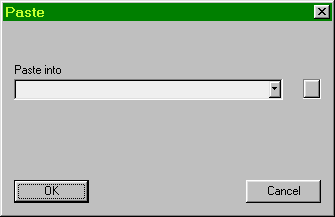
There will be a window popping up titled Paste inside UOBod asking you to determine into which one of your predefined Bod books or containers all Bods from the list should go. In case you now need another Bod Book you can use the little square button to the right of the drop-down list to create one on the fly. You can also ignore the book selection and leave them unassigned. Whatever you choose here will be stored in the database together with all of these Bods and output as their book. All data that UOAssist™ knows and outputs about your Bods will be entered into UOBod database. (3) Once you have pasted the Bods' data into UOBod put your Bods back into their books to save space. It may be helpful to use an additional book if the contents of your original Bod Book is more than your Character can hold. This way you can extract your Bods form one book and enter them back into another one without them getting mixed up. Repeat this until your original Bod Book is empty and keep on doing this until all of your Bod books finally are entered into the program's database. It is important to understand that all Bods will immediately go into the appropriate subsections of the database. So your Agapite LBods will be stored in Smith LBods / Agapite etc. Should you happen to have selected a subsection where none of the Bods you entered actually went, you wont see any change after the import. Don't panic - just look in UOBod's appropriate section; they're all there :) Chances are you will come across the odd Bod that UOBod cannot interpret. They'll be mostly very old Bods where the format differs from what it is now. You will get an error message from UOBod in this case describing the problem and a text file will pop up in your editor showing you the Bod(s) in question. Please simply enter those Bods manually. 1. As of this writing we have unfortunately been unable to obtain any comment on the chances for UOAssist™ ever supporting this. Any comments that may have emerged meanwhile will probably be found at Tugsoft's boards on this website: http://boards.tugsoft.com/ . Please take a look there. 2. Tip: Use a character in UO who has as little items as possible in his backpack. As mentioned before, remember to drop any Bods contained in Bod books into a separate container before you use UOAssist™. 3. In detail this is: complete description for the Bod, filling state of any LBod, filling state of any SBod and price (if you have set one in UOAssist™). The date and time and the book or container will be added by UOBod and stored. More details here The linkage between any individual Bod and it's Book may be re-edited any time and you can use the checkmode to assign a book to many Bods at once. Renaming the Book or Container itself is also easily done any time from the Books command in the Edit menu and will be instantly reflected in your database. |

 Now change to UOBod - make sure it really is the active program in windows (has the window's focus) and use CTRL-V to paste the list into UOBod.