|
Entering your Bods as you get themIt's a good idea to enter your new Bods the moment you receive them at the tailor's or blacksmith's. All you need to do is to load UOBod and use CTRL-S or CTRL-L. (1)
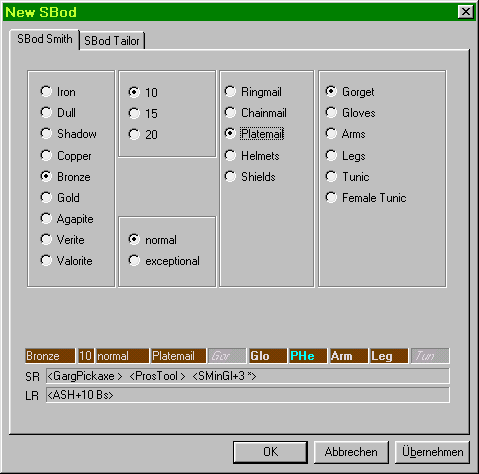
You can of course collect your Bods for a period of time and enter them later using the methods described above, but then your database will not be up-to-date most of the time. Even while entering a Bod and before completing the process by "OK" there will be some information displayed at the lower region inside the entry window (New LBod or New SBod) At the very bottom all the possible rewards are listed for both the Sbod (SR) and the matching LBod (LR) one of which you may expect to receive on returning the Bod you are about to enter. Rewards marked by an asterisk " * " are the unlikely ones.2 The example shows the rewards for a Bronze 10 normal Platemail Gorgets SBod: Gargoyl's Pickaxe, Prospector's Tool or Studded Mining Gloves (+3) and for the corresponding Bronze LBod (Ancient Smithy Hammer +10) A comparison of the SR and LR (Sbod Rewards and LBod rewards) may help you to decide whether you want to fill and return this one immediately or go for the LBod. In the field immediately above you can see whether the Bod you are about to enter can be combined with any other Bod existing in your collection. Whenever there is indeed an empty slot where your new SBod can go, the corresponding LBod is displayed here. This "empty slot" is shown within the LBod with the corresponding Sbod's abbreviation in Italics. In the example it is the "Gor" right after the word "Platemail" ... position 1 of the LBod. SBods known to the program but not yet integrated into an LBod are shown by the color code for a "fit ", which throughout the entire program is bold bright cyan. In the example the Platemail Helm on position 3 of the LBod is such a fit as you can see by the PHe. SBods that are known to be physically integrated into the LBod are marked by a three character code in bold black or white and are displayed at their appropriate position in the LBod. In the example " Leg " stands for Legs and " Arm " for the Platemail Arms. This way, without actually adding a Bod into your database so far, you can easily find out whether a Bod you see in a Bod Book on a vendor is one that you can use - if you buy it you click OK, if your don't you click on "Cancel" Summing it all up you can take the following information from these fields: There is indeed an exceptional Bronze 10 normal Platemail LBod to accommodate the 10 normal Bronze Platemail Gorgets you are currently entering. Into this LBod the Gloves, Legs and Arms are already integrated and there is also a suitable Plate Helmet SBod that you own but that has not yet been combined with the LBod. In case another Gorget SBod had already been combined with this LBod earlier, there would be no display of any LBod in this field at all, since for the Bod you are about to enter there would be no available space (unless of course you got yourself another 10 normal Platemail Bronze LBod with a free slot) Entering Lbod works similar. You press CTRL-L (for LBod) and get the LBod entry window. The Lbod is immediately displayed together with the possible rewards and any suitable Sbods you already own are shown. All of this is not only visible when entering a new Bod, but at any time by using the "Edit" command. (either F2 from the keyboard or from the context menu by doing a right click on the Bod, or simply by a double click to the Bod's Material Column). Additionally you can generate a report with the same information more or less. You should get used to saving your database after entering Bods. If Windows unexpectedly forces you to reboot you will loose all unsaved data; and there is nothing UOBod can do about that. Use the Mod. field in the
databases' status bar as a shortcut to save your file. (Double Click). CTRL-ALT-S works too.
1. As a default UOBod will bring up the Entry dialog for Blacksmith Bods, but you can change this behavior in Edit/Options/Miscellaneous. 2. The data concerning rewards are courtesy of "Tower of Roses" (Europa Shard) |

 If you do, you will later be able to see the date and time you received the Bod (entry date) in the Item information tab of the Edit SBod or Edit LBod window.