|
Actions on all listed Bods and using Checkmode
While the normal "Cut", "Copy", and "Delete" commands from the Static Context Menu or the Edit Menu all work for on currently selected Bod only, UOBod also offers a number of commands that perform actions on all Bods listed in the database window. Since these affect
always all listed Bods you must make sure that the Bods displayed are all you want to act upon, but no others. The Checkmode Feature will help you with that.
The commands that you can use on all listed Bods are available from the "Action on Listed Bods" Toolbar:
 |
Delete all listed Bods |
Deletes all the Bods after confirmation |
 |
Book for listed Bods |
Assigns all the Bods to one selected Bod Book |
 |
Set Common price |
Puts the same price to all of the listed Bods. |
 |
Export listed Bods to online databases |
Copies all the Bod's data into the clipboard |
|

|
Fill all listed Lbods |
Integrates all "fits" into the Lbod and deletes the corresponding Sbod entries in the database.
You have to be in an LBod section to use this command. |
 |
Export listed Bods to text file |
Creates a text file that can be read back into UOBod containing all data from the currently listed Bods |
All of these options are additionally available from Edit in the main menu.
To make sure you can select exactly the Bods you need , there is a feature called Checkmode that lets you mark each Bod individually first, and later act on all the checked Bods at once using one of the actions that the new "Actions on listed Bods" Toolbar provides.
Checkmode places an empty checkbox in front of any Bod that is listed and at the same time enables the "Checkmode Toolbar":

 |
Check all listed |
checks all Bods currently listed |
 |
Uncheck all listed |
unchecks all Bods currently listed |
 |
Show only checked |
use this make the checked ones the listed ones |
 While you are in Checkmode you can use all the available filters from the Filter Setting window or the column heads freely to restrict what gets listed. Having done that you can use check
all and selectively uncheck some, or vice versa. You can even change the sections while you are in Checkmode; your selection is remembered. (See the advantage over the usual multi-selection with CTRL-Click?) When you have done selecting,
you use the Show only checked Bods icon. While you are in Checkmode you can use all the available filters from the Filter Setting window or the column heads freely to restrict what gets listed. Having done that you can use check
all and selectively uncheck some, or vice versa. You can even change the sections while you are in Checkmode; your selection is remembered. (See the advantage over the usual multi-selection with CTRL-Click?) When you have done selecting,
you use the Show only checked Bods icon.
- Please understand that the principle strategy is that you act on all the Bods that are currently listed in the right pane of the database window. Checkmode only helps you to have full control over what gets listed there by first using the Checkmode, (
 )then
click on "Show only checked Bods" () and finally start any action that you like. )then
click on "Show only checked Bods" () and finally start any action that you like.
What you will get may look like this example: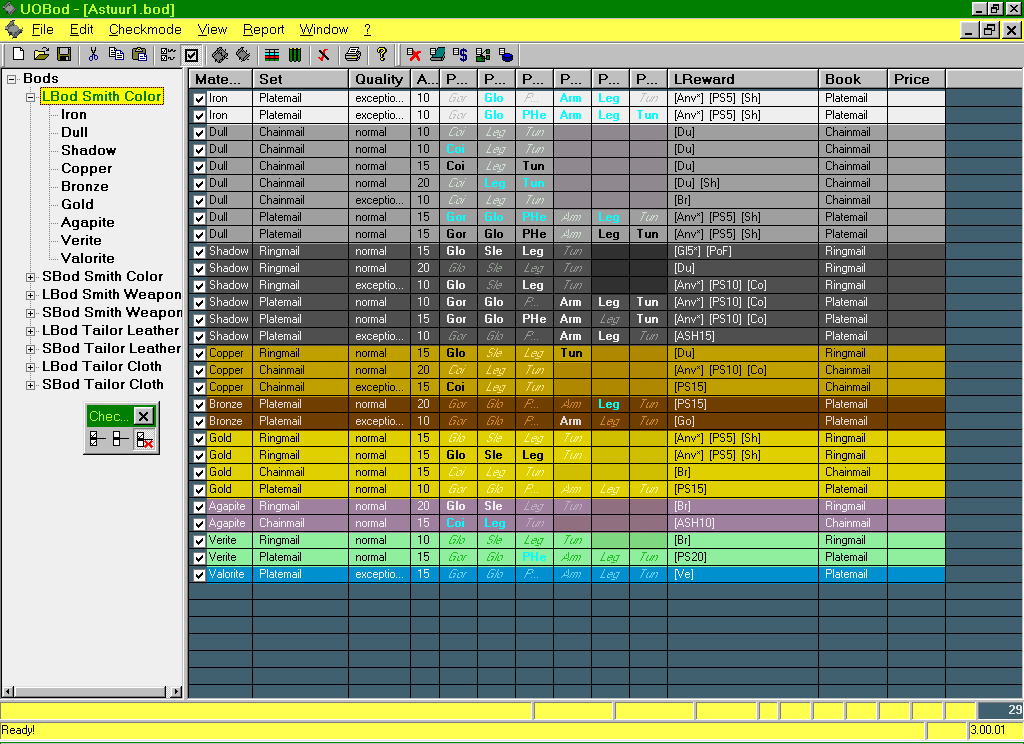
These should be the Bods that you want to process. You are now ready to use any of the commands mentioned above.
| 